Facebook Messenger Connection Guide
The entire connection takes about 5 minutes. All Meta developer setup (creating the App, registering the Webhook, issuing tokens) is handled by Coauths, so your clinic only needs to grant page access in the Facebook login popup.
Requirements
To connect a Facebook Page, you only need to prepare one thing:
- Admin permission for the Facebook Page you want to connect — if the page belongs to a Business Manager, have Admin permission granted to you within it.How to create a Facebook Page →
Developer tasks such as creating the Meta App, business verification, registering the Webhook, and issuing tokens are all handled by Coauths. Your clinic never needs to visit developers.facebook.com.
Helpful guides
If you do not yet have a Page or Business Manager, use the guides below to set them up first. If you are already a Page Admin, you can skip straight to the setup steps.
Setup steps
Click the “Connect with Facebook” button in the CRM, then grant page access in the Facebook login popup — and the connection is done. The whole process takes about 5 minutes.
Start the channel connection in the CRM
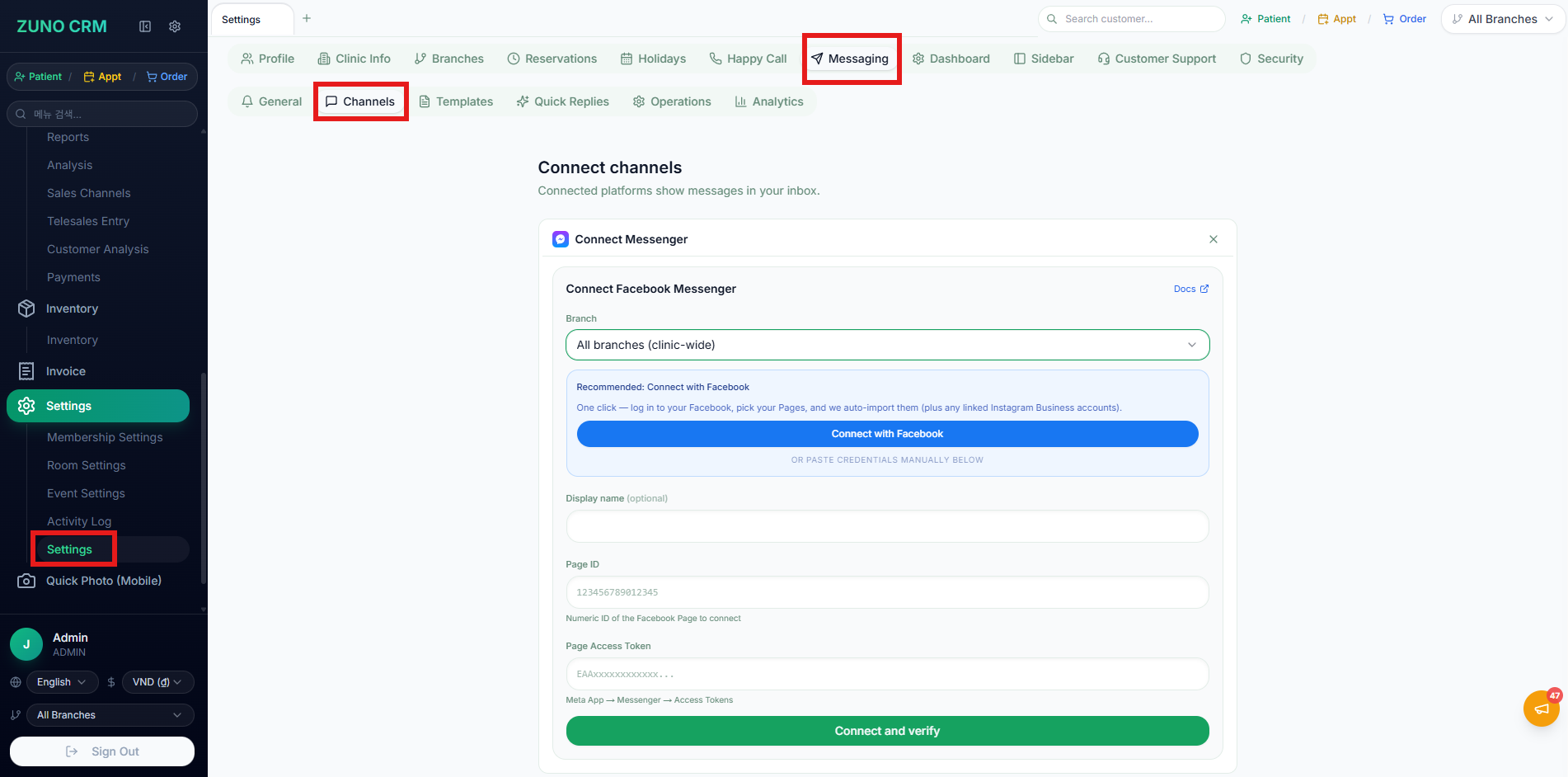
Time required: 1 min- Log in to the CRM → go to Settings → Channels → open the “Connect channel” page
- Click the “Connect channel” button on the Facebook (Messenger) card
- Select the Branch to connect → the connection form opens
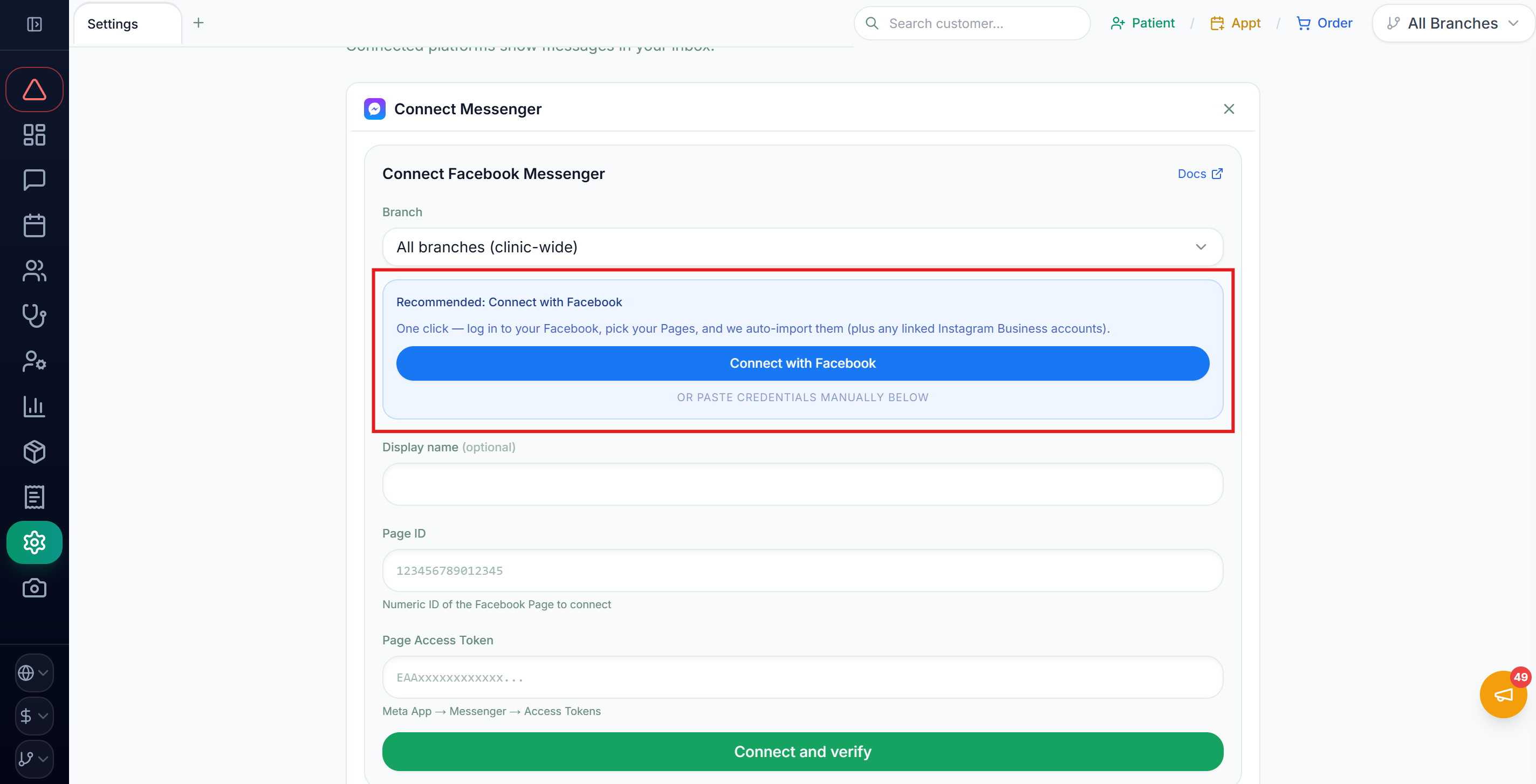
Click "Connect with Facebook"
Time required: 1 min- In the “Recommended: Connect with Facebook” section at the top of the form, click the “Connect with Facebook” button
- When the Facebook login popup opens, log in with a Facebook account that has Admin permission on the page
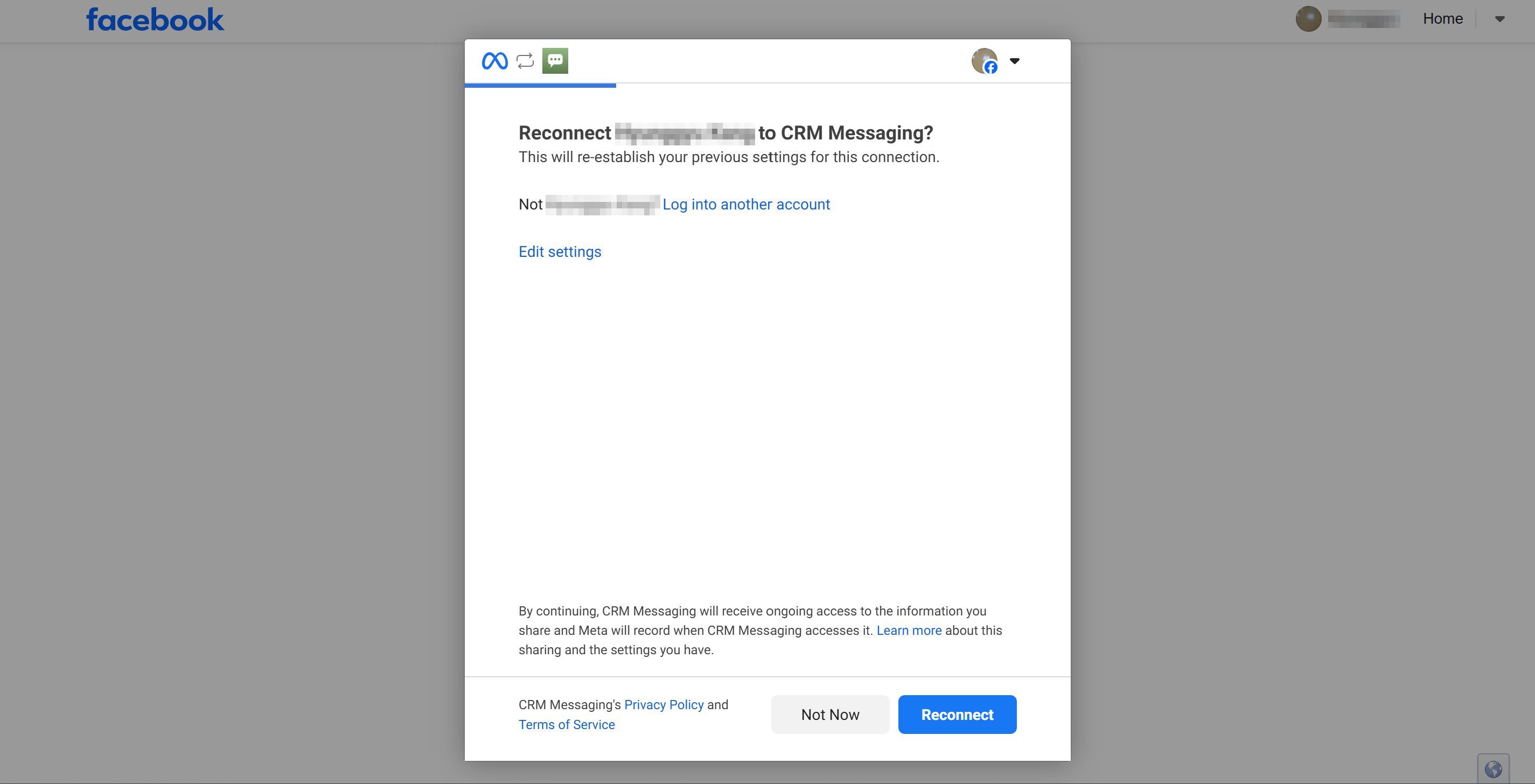
ℹ️ The button shows “Reconnect” because our demo account was already connected. On your clinic’s first connection it will say “Connect”.
Grant business and page access + select pages
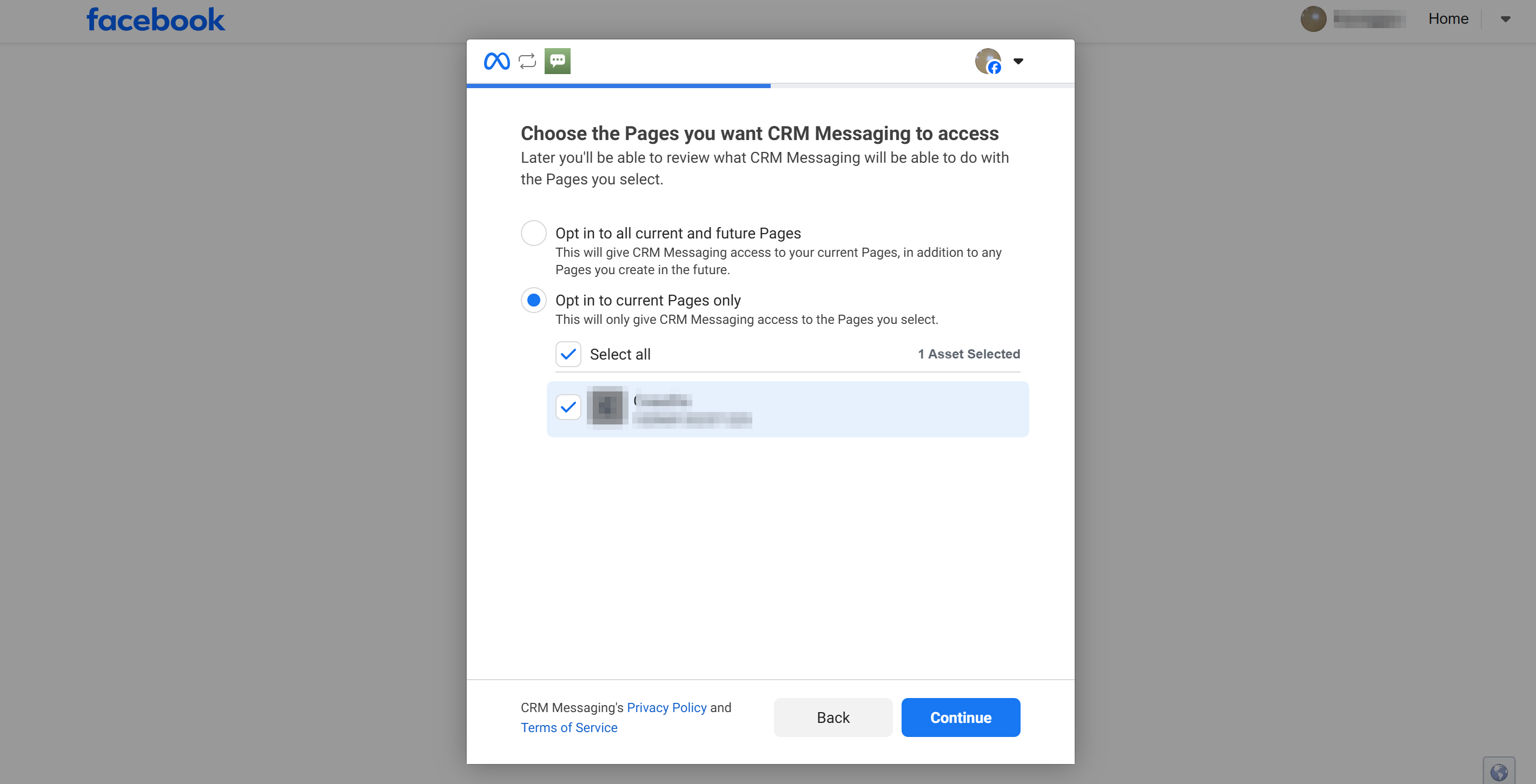
Time required: 2 min- In the popup, allow the business/page access request
- On the page selection screen, choose the page to connect to the CRM
Automatic return → confirm the connection
Time required: 1 min- When the popup closes, you are returned to the CRM automatically — the selected pages are registered as channels and the webhook is subscribed automatically as well
- Confirm that the channel card shows “Connected”
- Test it: send a test message to the page from your own Facebook account and it will arrive in the CRM inbox
Common issues
Clicking "Connect with Facebook" does not open a popup
Your browser most likely blocked the popup. Click the popup-blocked icon in the address bar, allow popups for this site, and try again. Ad-blocker extensions can also block the Facebook login window — temporarily disable them and retry.
My page does not appear in the page selection list
In most cases the Facebook account you logged in with does not have Admin permission on that page. If the page belongs to a Business Manager, get Admin access granted there. If you opted in only some pages during the access step, the page may have been left out — allow access to all current and future pages and try again.
The connect button shows a permission error
Meta review approvals are being applied progressively, so a temporary permission error can appear. Contact your Coauths representative and we will check it right away.
Connected, but messages do not appear in the CRM inbox
First check that the page is Published (Facebook Page Settings → Page Visibility). If the channel card shows an error, use the "Reconnect" button to connect again. The webhook subscription is handled automatically during connection, so there is nothing to configure on the clinic side. If it still fails, contact your Coauths representative.
A policy violation error appears when replying
The message was sent outside the 24-hour messaging window. You can reply freely within 24 hours of the patient's last message, and the CRM applies the HUMAN_AGENT tag to support replies for up to 7 days. After that, the patient must message you again before you can reply.
I want to connect an additional Facebook page
On the channels page, click "Connect channel" again and select the new page the same way. If you allowed access to all current and future pages during the first connection, you can select it right away without re-authenticating with Facebook.
📄 Download the full guide PDF
For offline reference. A print-friendly PDF version of this page.