WhatsApp Business Connection Guide
Right now one-click (Embedded Signup) is under Meta review, so we connect using the manual method. Your clinic only needs to prepare a dedicated phone number; Coauths handles the Meta setup (WABA, token, webhook) together with you. It takes about 20 minutes, and Display Name review may take an extra 1~2 days.
Requirements
For now we connect using the manual method (one-click will be available after Meta review). Your clinic only needs to prepare the items below; Coauths handles the Meta App, WABA, System User token, and webhook setup together with you.
- A dedicated WhatsApp phone number — you need a number that is not tied to another WhatsApp account or the regular WhatsApp app.Prepare a dedicated WhatsApp phone number →
- Basic business information — your clinic name, address, industry, and other basic details. You enter these when registering the WABA.
- Meta Business Admin access — required to set up the WABA and System User token. Your Coauths representative will work through this part with you.
Approving the Display Name or raising your send limit may additionally require Meta business verification. The connection itself works even before verification, so when you need it, please refer to the business verification guide.
Helpful guides
The connection itself takes just one popup, but it helps to learn about phone number preparation and business verification in advance. Pick only the guides you need.
Setup steps
Four steps: prepare a dedicated number → Meta setup (with Coauths) → enter values in the CRM → verify. Technical setup like the Meta App, token, and webhook is handled by Coauths together with you. One-click (Embedded Signup) will be available after Meta review.
Prepare a dedicated phone number (in advance)
Time needed: PreparationPrepare a dedicated phone number to register with the WhatsApp API. It must be a number that is not tied to another WhatsApp account or the regular WhatsApp app (personal or Business).
Hand over the verification code (Coauths does the Meta setup)
Time needed: ~5 minThe Meta developer-console work — creating the WABA, setting the Display Name, and issuing the System User token — is handled by Coauths. Your clinic’s only task in this step is to relay the phone verification code.
- A 6-digit verification code arrives by SMS or voice call on the dedicated number you prepared → read it to your Coauths representative.
- If the SMS does not arrive, retry with the voice call option (MVNO numbers almost always receive it).
Enter the values in the CRM to connect
Time needed: 3 min- Log in to the CRM → Settings → Channels → “Connect channel”
- Click “Connect channel” on the WhatsApp card → select a Branch
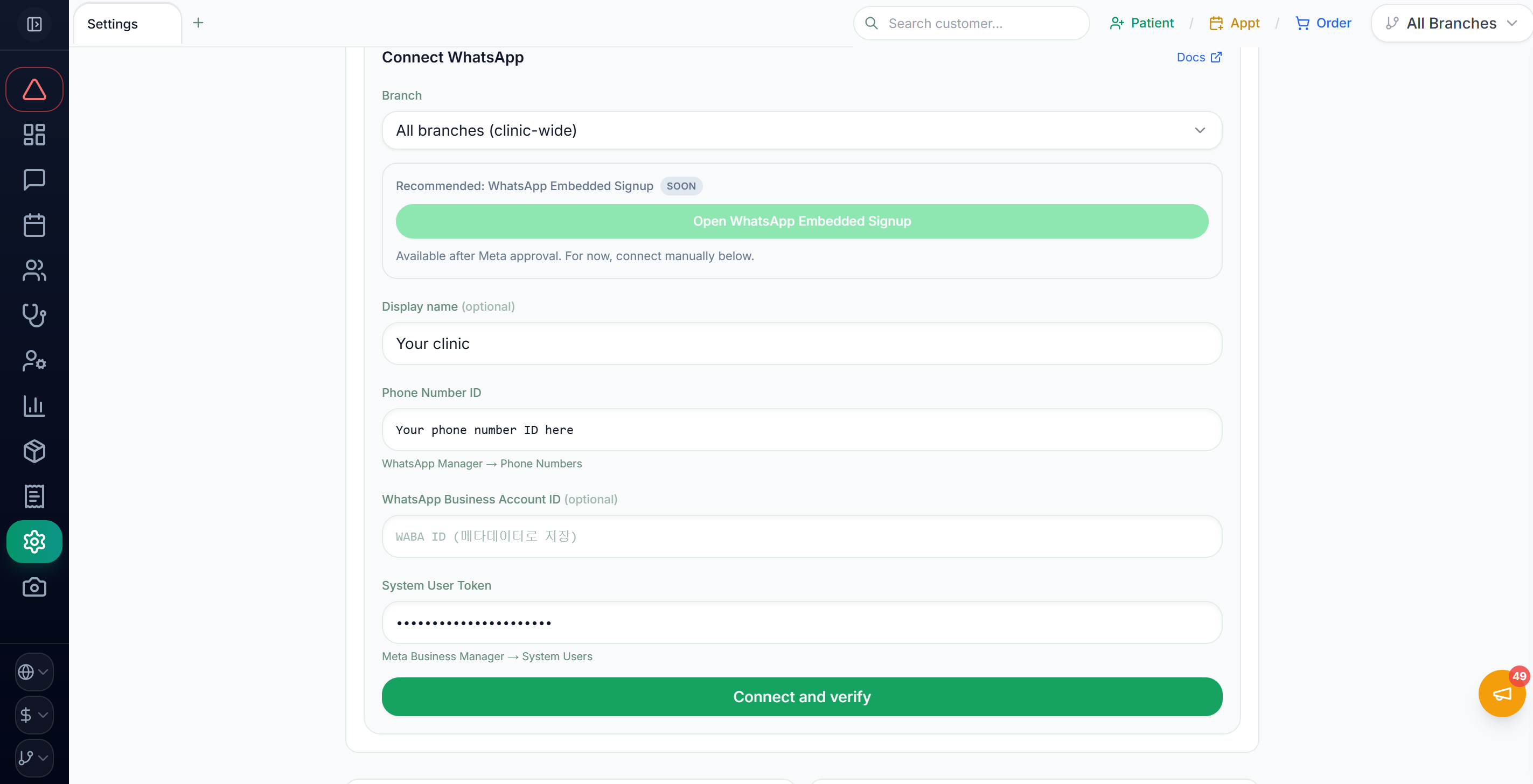
- In the manual entry fields at the bottom of the form, enter the values from step 2:
- Phone Number ID
- WhatsApp Business Account ID (WABA ID)
- Access Token (System User permanent token)
- Click “Connect and verify” → the channel is registered
Verify the connection (send/receive test)
Time needed: 2 min- Confirm the channel card shows “Connected”
- Check that it works:
- From your own WhatsApp app, send a test message to the clinic number
- Confirm it arrives in the CRM inbox
- Reply from the CRM → confirm your own WhatsApp receives it
- If it does not arrive in the inbox, it may be a webhook or WABA subscription issue, so contact your Coauths representative (in most cases Coauths sets this up in advance)
Common issues
Connected, but no messages arrive in the inbox
Incoming WhatsApp messages are delivered to the Coauths app's webhook, and your WABA must be subscribed to that webhook. Coauths usually sets this up in advance, but if you can send messages yet receive none, this is almost always the cause — please contact your Coauths representative.
I get an error on "Connect and verify"
The most common causes are an Access Token missing permissions (no whatsapp_business_messaging) or an incorrect Phone Number ID. Please double-check the token permissions and the values you entered. If you are still blocked, contact your Coauths representative and we will look into it.
"Phone number is already registered" — the number is already in use
That number is already registered to the regular WhatsApp app or another WhatsApp Business Account. Unregister the existing setup first, or use a new number. Resolve existing WhatsApp conflict.
The SMS verification code does not arrive
Some Korean carriers block international SMS. When verifying the number, retry with the voice call option. MVNO numbers receive the code almost 100% of the time. After 3 failed attempts you are locked out for 30 minutes to 24 hours, so try again a little later.
The Display Name does not appear on patients' phones
The Display Name is under review. Once Meta approves it within 1~2 days it appears on the patient's screen; before that, only the phone number is shown. You can check the Display Name Status in WhatsApp Manager → number details. If approval keeps stalling, Meta business verification may additionally be required.
I cannot message a patient after 24 hours
This is a send attempt outside the 24-hour window. You can message freely only within 24 hours of when the patient sent a message to the clinic; after that, you can only send approved Message Templates (template review required).
My template message was rejected ("Template Rejected")
Possible causes include promotional wording, too many variables, or a policy violation. If the body contains explicit marketing words like "discount" or "event", it must be classified under the Marketing category — it will be rejected under Utility. You can check the rejection reason in WhatsApp Manager → Message Templates → the specific template → Rejection Reason.
The channel card shows an error
This is usually an expired or invalid Access Token. Issue a new System User token and re-enter it in the manual entry field of the channel connection form. If it keeps recurring, contact your Coauths representative.
📄 Download the full guide PDF
For offline reference. A print-friendly PDF version of this page.