Instagram DM connection guide
If your Instagram professional account and Facebook Page are ready, the connection itself takes about 5 minutes. Coauths handles all the developer setup.
Requirements
To connect an Instagram account, please have the following three things ready.
- An Instagram professional (Business/Creator) account — DM integration does not work with a personal account.Switch to an Instagram Pro account + link a Page →
- A Facebook Page linked to the Instagram account — even with a professional account, it must be linked to a Page for DM integration to work. If you don't have a Page yet, create one first.How to create a Facebook Page →
- Admin permission on that Facebook Page — the person who clicks the “Connect with Instagram” button must be an admin of that Page.
Developer tasks such as creating the Meta app, business verification, permission review, and webhook setup are all handled by Coauths. The clinic only needs to prepare the three items above.
Helpful guides
If you need to prepare your account before connecting Instagram DM, please refer to the guides below.
Connection steps
The process has 4 steps: start the channel connection in the CRM → click “Connect with Instagram” → grant permissions → confirm. You never need to open a developer console, and the whole thing takes about 5 minutes.
Start the Instagram channel connection in the CRM
Time needed: 1 min- Log in to the CRM → go to Settings → Channels → the “Connect channel” page
- Click the “Connect channel” button on the Instagram card
- Select a branch → the connection form opens
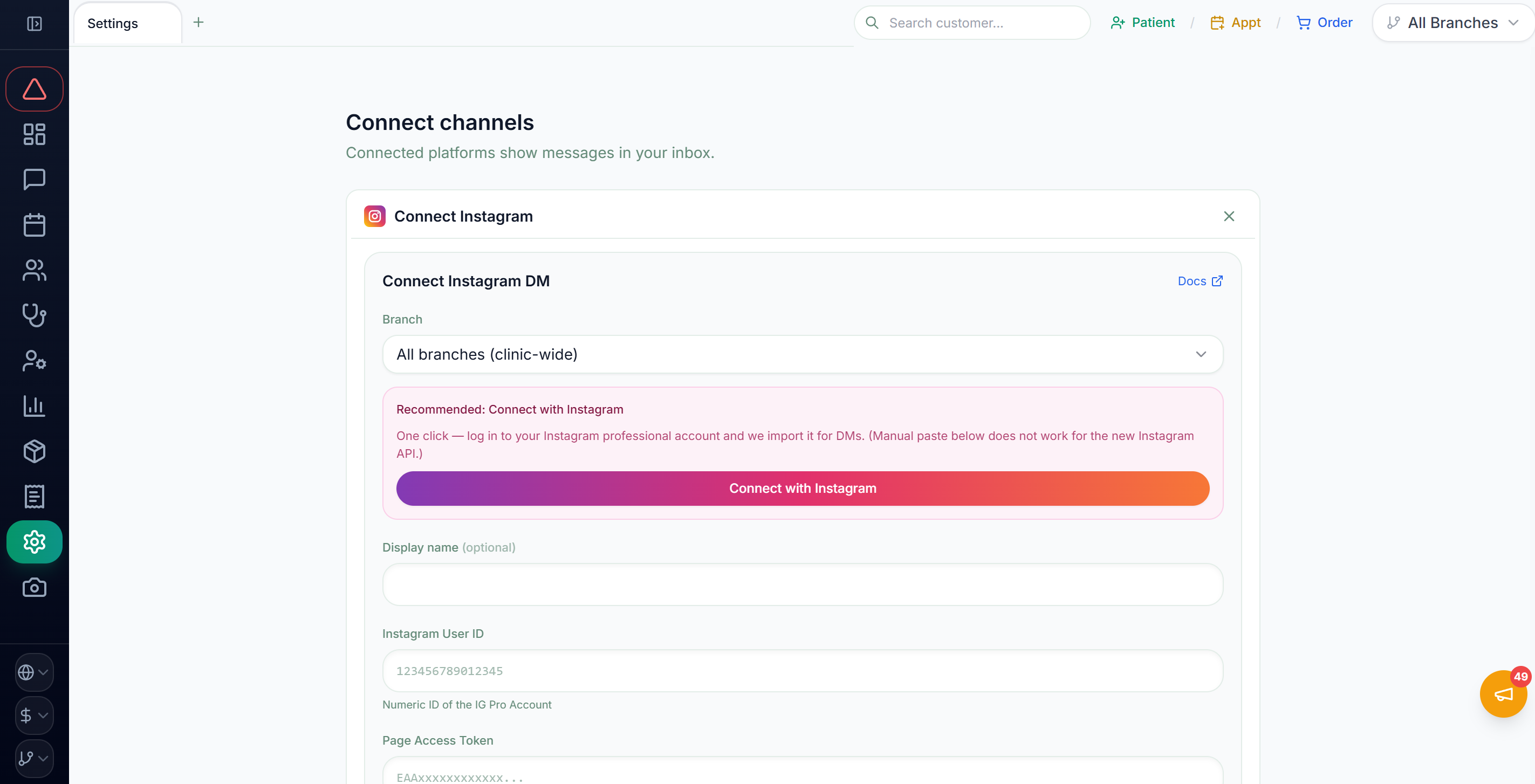
Click "Connect with Instagram" → log in via popup
Time needed: 1 min- In the connection form, click the “Connect with Instagram” button
- When the popup opens, log in with the Facebook account that manages the clinic's Page
The manual entry form below the button (“or paste credentials manually below”) is a backup path used together with a Coauths representative in special cases.
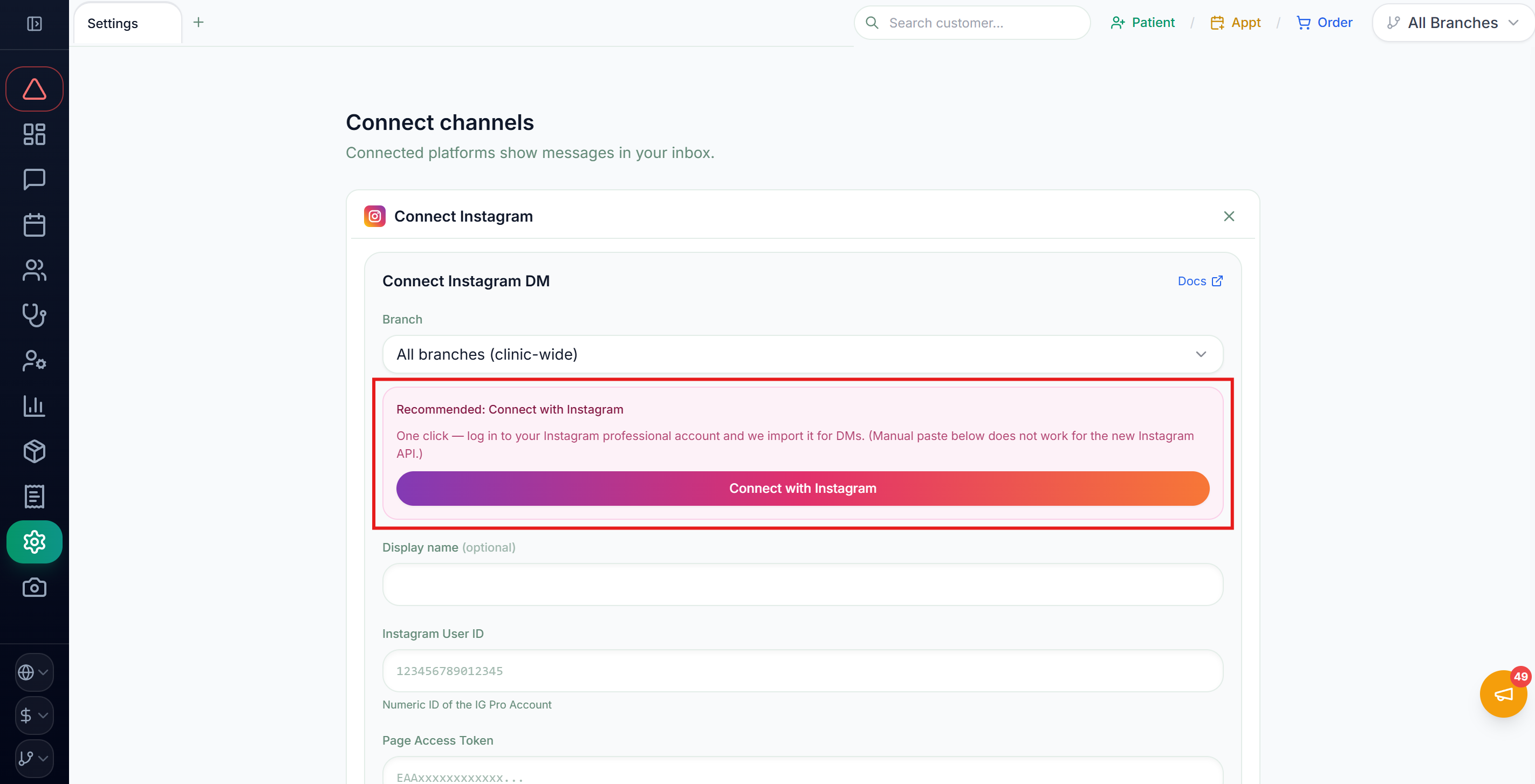
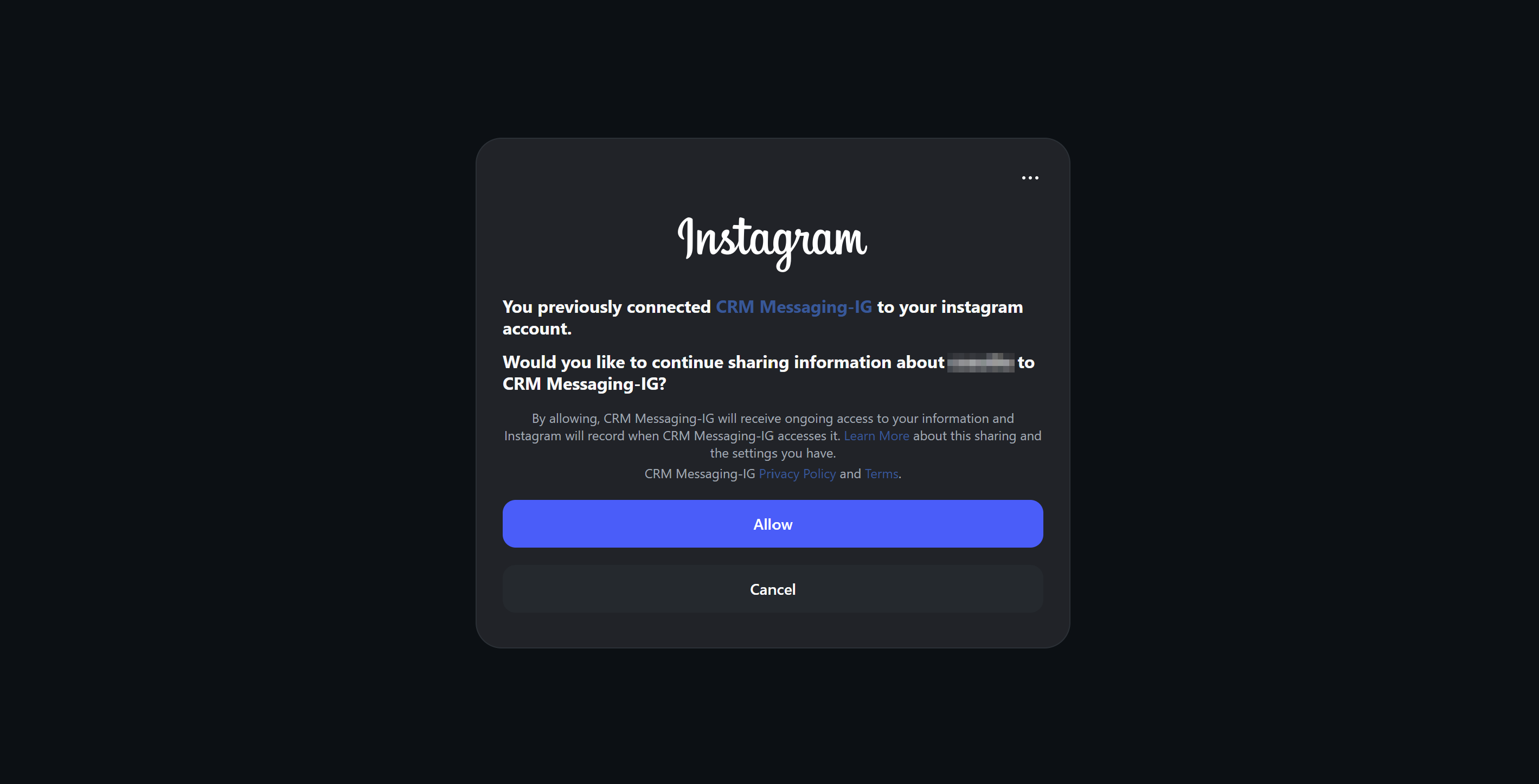
ℹ️ The button shows “Reconnect” because our demo account was already connected. On your clinic’s first connection it will say “Connect”.
Grant Instagram account and Page permissions
Time needed: 2 min- Following the popup prompts, select the clinic's Instagram professional account
- Allow access to the Facebook Page linked to the account — opting in to all current and future Pages is recommended
- Approve all the requested permissions
Automatic return + connection check
Time needed: 2 min- Once permissions are granted, you return to the CRM automatically, the Instagram account is registered as a channel, and the webhook is subscribed automatically too
- Confirm the channel card shows “Connected”
- Verify it works: send a DM from another Instagram account to the clinic account → confirm it arrives in the CRM inbox
Common issues
My clinic's Instagram account doesn't appear in the popup
Make sure the Instagram account is a Professional (Business/Creator) account and that it is linked to a Facebook Page. If either is missing, it won't appear in the popup list. Complete Professional conversion and Page linking, then retry.
"Instagram account is not connected to a Page" error
The Instagram Professional account is no longer linked to a Facebook Page. Reconnect via Instagram app → Edit profile → Page, then retry.
I can't select the Page in the popup
The Facebook account you logged in with needs Admin permission on that Page. Check whether you are an admin in Page Settings → Page Access.
The "Connect with Instagram" button returns a permission error
Approval of permissions for Coauths' Meta app may still be rolling out. Contact your Coauths representative and we will check right away.
Connected, but DMs don't arrive in the inbox
Send the test DM from a different Instagram account, not the clinic account itself. If the channel card shows an error, click "Reconnect". If messages still don't arrive, contact your Coauths representative.
Connected, but Instagram DMs don't reach the inbox (message access toggle)
For an Instagram account linked to a Facebook Page, DMs are not forwarded to external tools while the message access toggle is off. Turn on "Allow access to Instagram messages in Inbox" under Facebook Settings → Linked accounts → Instagram, then click "Reconnect" on the CRM channel card to reconnect.
Switched over from another inbox tool (conversation routing)
If Instagram conversation routing in your Meta business/Page settings still points to the previous tool, DMs keep flowing only to that tool. Check and change the routing destination in the Page settings, then send a test DM to confirm it arrives in the CRM inbox.
IG → CRM works but CRM replies don't reach patients
Most likely the 24-hour message window. You can reply freely within 24 hours of the patient's last message; after that, replies are sent as human-agent responses (HUMAN_AGENT) for up to 7 days only.
📄 Download the full guide PDF
For offline reference. A print-friendly PDF version of this page.