Switch Instagram to a Pro account + connect a Facebook Page
A step-by-step guide to switching your personal Instagram to a Business or Creator account and connecting it to a Facebook page. This is a prerequisite for the Instagram DM API integration.
What is a Pro account?
Instagram has three account types: Personal · Business · Creator. Business and Creator together are called a Professional Account (Pro account).
Switching to a Pro account gives you access to business features such as insights (analytics), ads, contact buttons, and the Instagram DM API.
Why do you need it?
For Coauths CRM to receive Instagram DMs, it has to call the Instagram Graph API, and this API is only open to Pro accounts. With a personal account, the integration is technically impossible.
In addition, a Pro account must be connected to a Facebook Page for the API to work. Both conditions are required.
Business vs Creator — which should you pick?
Both types can use the DM API. The differences are the category shown and some of the insights.
- Business ✅ recommended — for companies, shops, and services. A business category such as “Medical & Health” is shown on the profile. Business hours, address, and phone number are displayed.
- Creator — for content creators, influencers, and public figures. Content takes priority over business information. Less suitable for running a clinic.
How to switch from Personal to Pro
You can do this in the phone app or on a computer (web). Pick your environment.
- Instagram app → your profile tab at the bottom right
- Top right ≡ (hamburger menu) → Settings and activity
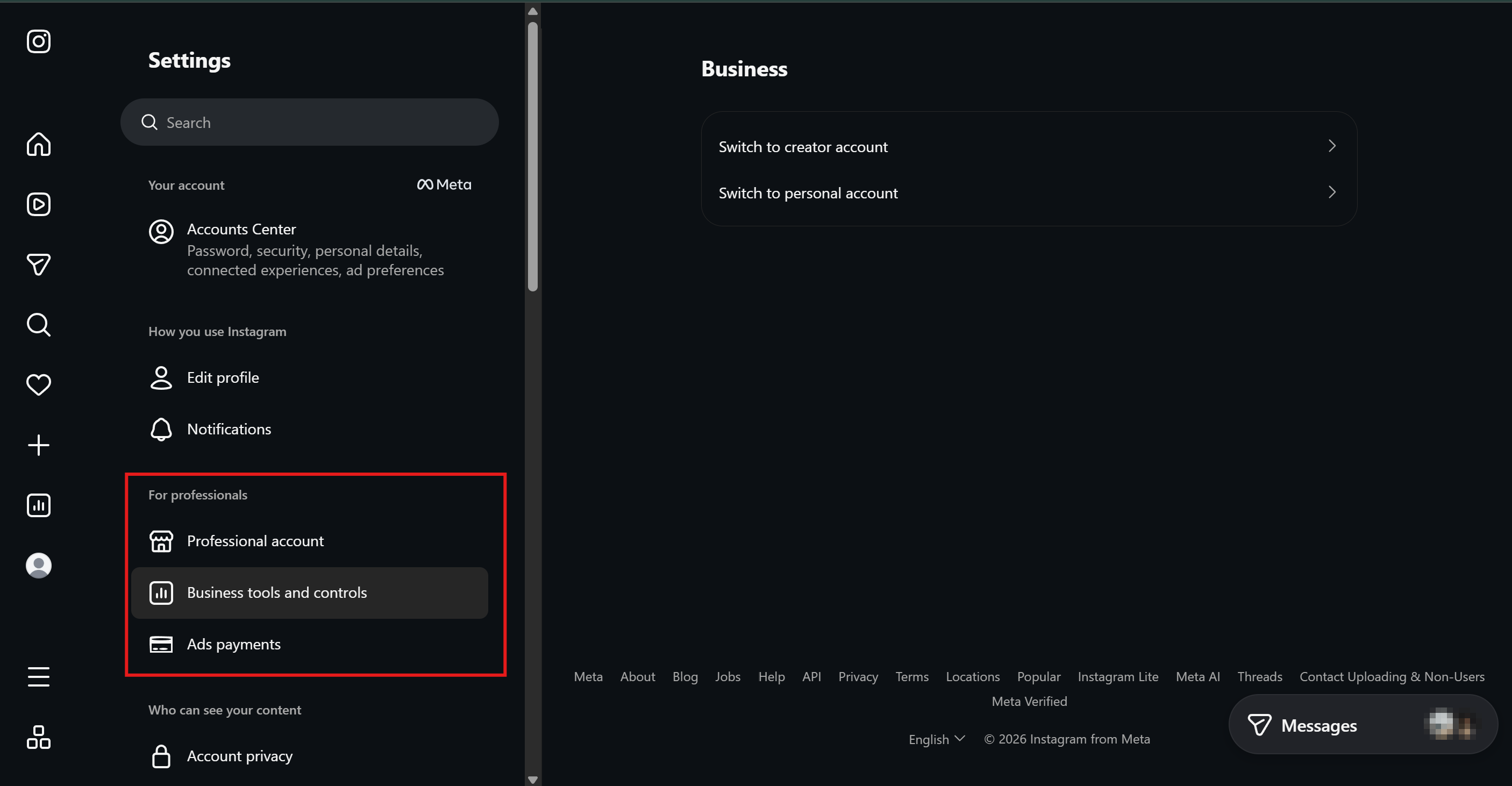
- Scroll down → For professionals (newer builds: Your insights and tools) → Account type and tools
- Tap Switch to professional account
- Intro slides → Continue
- Choose a Category (pick the single best fit):
- Dermatology / aesthetics:
Skin Care Service - Plastic surgery:
Plastic Surgeon - Dentistry:
Dentist & Dental Office - Korean medicine clinic:
Acupuncturist - General practice:
Medical Service
- Dermatology / aesthetics:
- Turn on Display category on profile (recommended — patients see it and trust you more)
- Select Business → Next
- Enter contact information (optional — you can edit it later):
- Phone number
- Address
- Save → the switch to a Pro account is complete
Connect a Facebook Page
Connect a Facebook Page right after switching to Pro, or later. This step is required — without the connection, the DM API will not work.
Connect right after switching (recommended)
On the last screen of the Pro switch, Connect to a Facebook Page appears. Select a page where you are an Admin and it connects automatically.
Connect later
- Instagram app → profile → Edit profile
- Scroll down → the Page (Facebook) item
- Connect or create → log in to your Facebook → select a page
Or connect from the Facebook Page
- Facebook page → Settings → Linked accounts
- Instagram → Connect account
- Enter your Instagram credentials → approve
How to confirm the connection
Both of the following must be true for the CRM integration to work:
- The Instagram account is Pro — if a category (e.g., “Medical & Health”) is shown at the top of the Instagram profile, it is in Pro status.
- It is connected to a Facebook Page — Instagram app → Edit profile → the Page item shows the name of the connected page.
Once both are confirmed, move on to the next section.
Finding your Instagram Business Account ID (usually not needed)
For a normal connection, you don't need this ID, because selecting your account in the CRM's “Connect with Instagram” popup handles it automatically. However, in special cases your Coauths representative may request it when doing a manual connection together, so we're leaving the steps here for reference. It is a numeric ID, not your Instagram username (@username).
Find it in Meta Business Suite
- business.facebook.com → Business Settings
- Left menu Accounts → Instagram accounts
- Click your Instagram account → check the
asset_idin the URL or the ID in the detail panel
📍 If you get stuck finding the ID, just tell your Coauths representative the page name and Instagram username. We'll find it for you.
Frequently asked questions
Q. If I switch to Pro, do my existing posts and followers disappear?
No. Everything stays exactly as it is. Only the account-type label changes and business features are turned on.
Q. Can I switch from Pro back to Personal?
Yes. From the same menu (Settings → For professionals → Account type and tools), use Switch account type. Note that going back immediately cuts off the DM API integration, and your insights data is lost as well.
Q. I connected the wrong page. Can I change it?
Instagram app → Edit profile → Page → Disconnect, then connect to a different page. Note that right after Disconnect, API calls may fail briefly (wait ~10 minutes).
Q. Our clinic runs several Instagram accounts
Switch each account to Pro individually and connect it to a page, and you can add them all to the CRM. Note that one page can be connected to only one IG account — multiple IG accounts need multiple pages.
Q. What's next?
- Go to the Instagram connection guide
- In the CRM, go to Settings → Channels and connect with the “Connect with Instagram” button — developer settings like the Meta app and Webhook are handled by Coauths
📍 If you get stuck anywhere, contact your Coauths representative.