Telegram Bot Connection Guide
Estimated time: about 10 minutes (No app review, the fastest channel)
Prerequisites
- A Telegram account (we recommend signing up with your clinic operations phone number — the account you sign up with becomes the bot owner)
- 2~3 candidate bot usernames (Latin characters ending in
bot) - Clinic logo (optional — for the bot profile picture, square 640×640px recommended)
Setup steps
Create a bot with @BotFather + copy the token
Est. time: 5 min- Type BotFather in the Telegram app search box → select the official BotFather with the blue check mark (verified) →
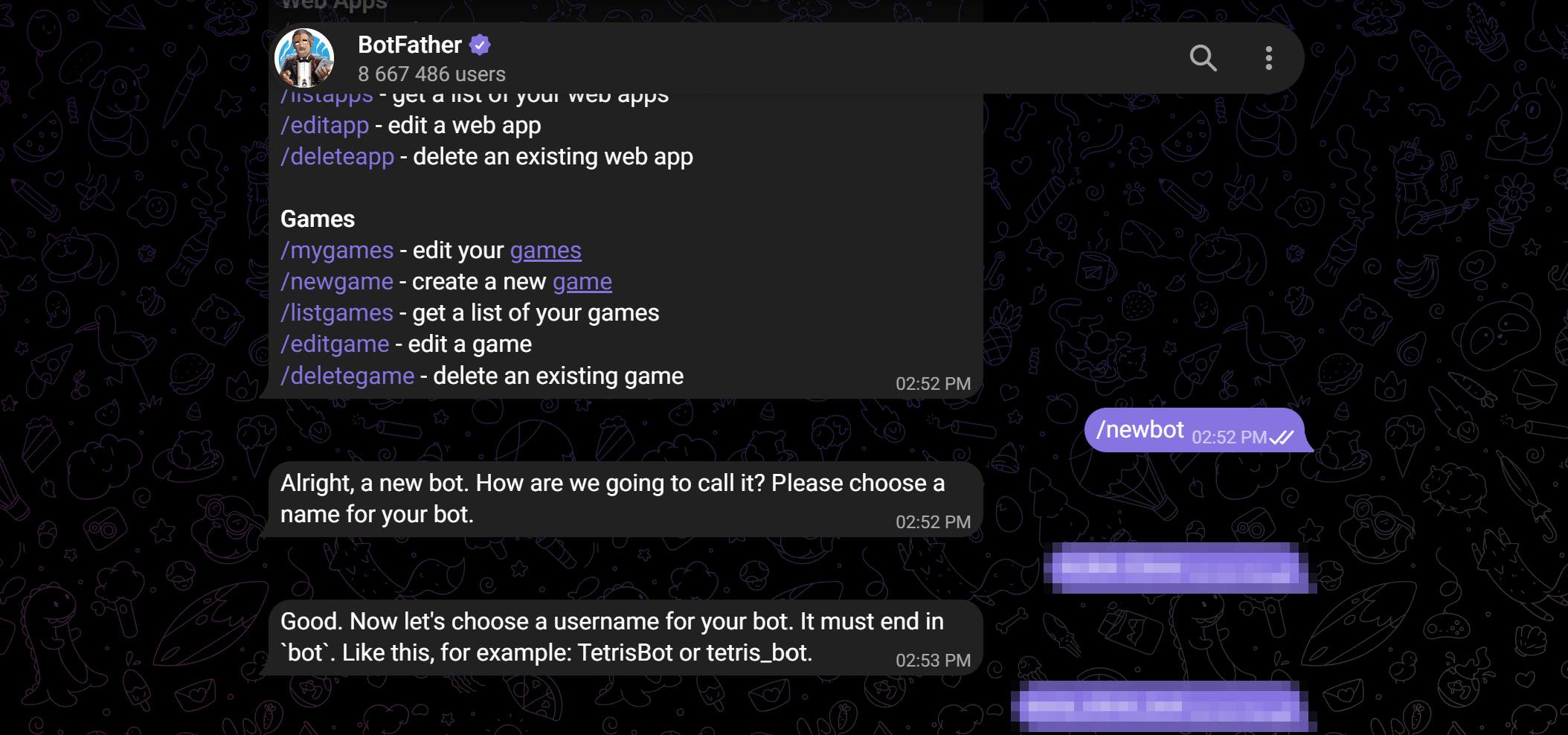
/start - Send /newbot
- Enter the bot name (the display name users see):
- Letters, emoji, and spaces are allowed — e.g.
Our Clinic Chatbot - Can be changed later with
/setname
- Letters, emoji, and spaces are allowed — e.g.
- Enter the username (permanent handle):
- 5~32 characters, letters / numbers / underscores only, must end with
bot - Globally unique + ⚠️ cannot be changed — e.g.
aura_clinic_bot
- 5~32 characters, letters / numbers / underscores only, must end with
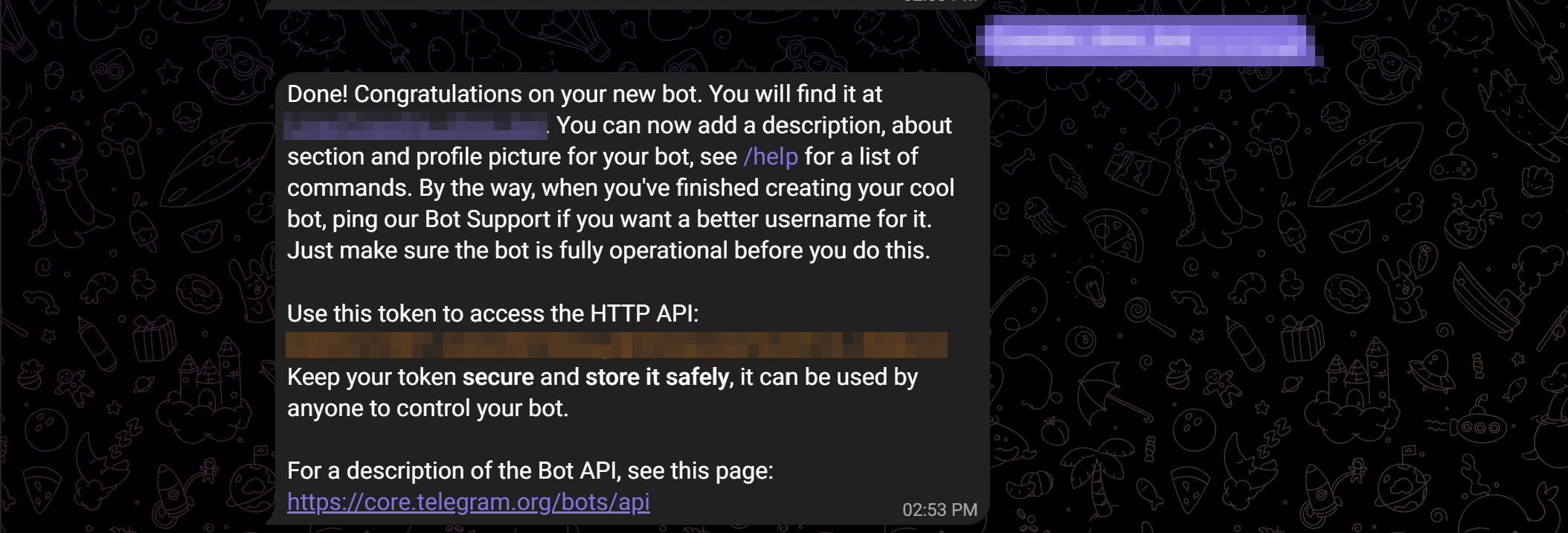
- BotFather immediately sends you the bot token (in the form
1234567890:AAEh...) → copy it
/revoke in BotFather to reissue it immediately. Also watch out for fake BotFather accounts without the verified mark./setuserpic and a short description with /setdescription so patients trust the bot more when they find it.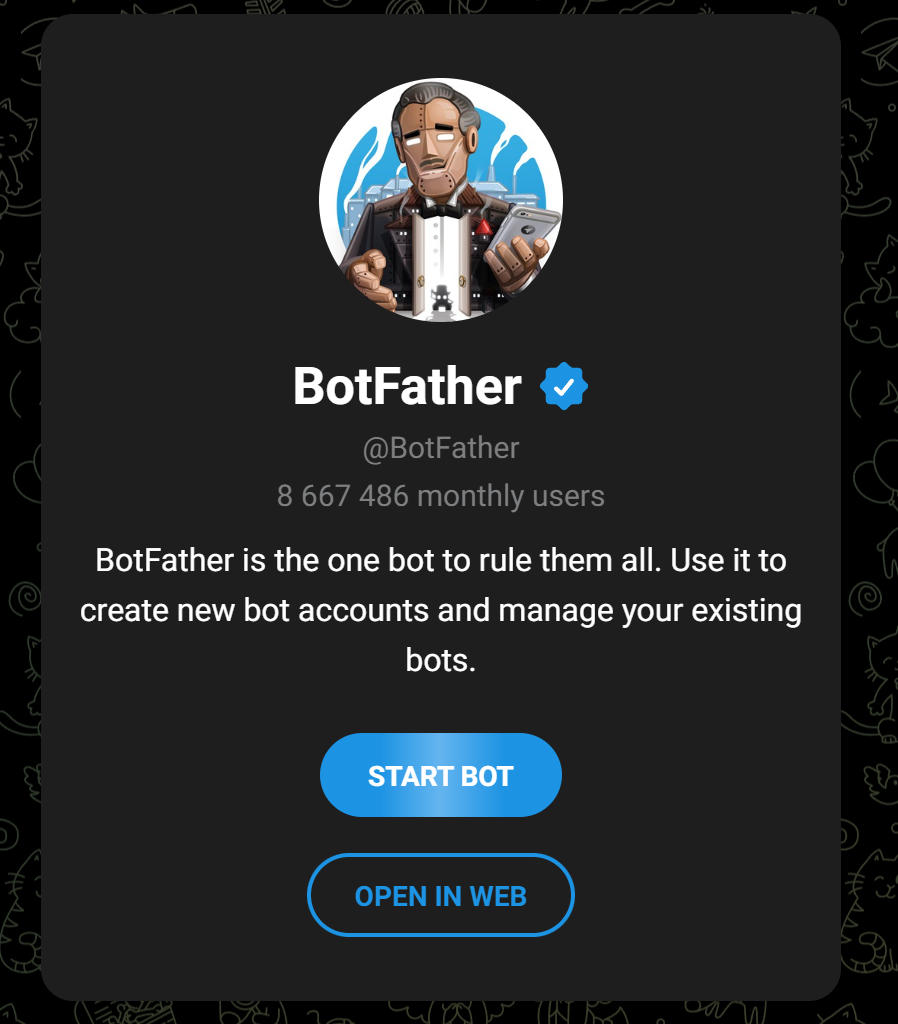
Register the token in the CRM — "Connect & verify"
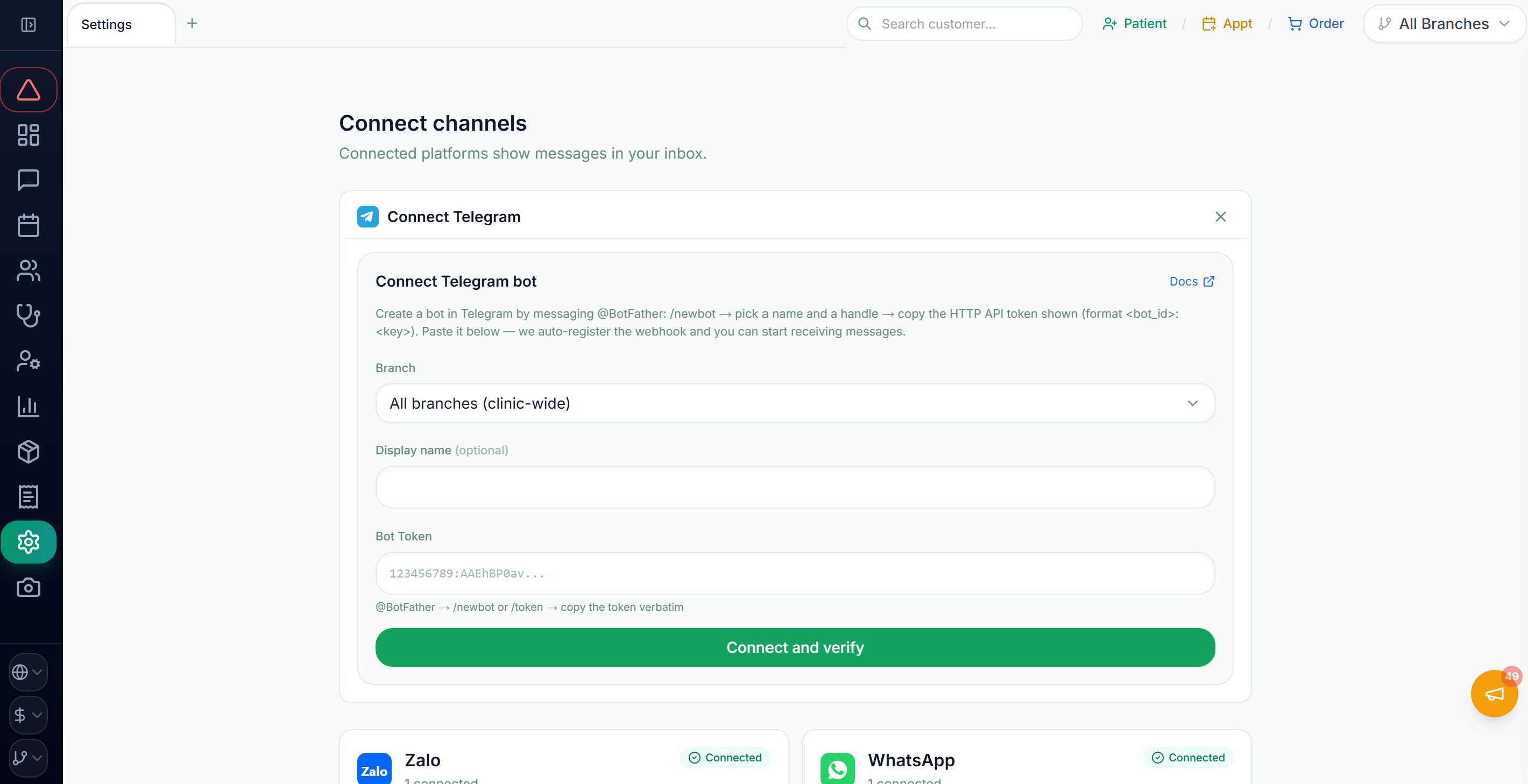
Est. time: 3 min- Log in to the CRM → Settings → Channels → go to the “Connect channel” page
- Click the “Connect channel” button on the Telegram card → select a Branch
- Paste the bot token you copied in Step 1 into the form as-is
- Click “Connect & verify” → on success, “Connected” is shown
Start a chat with the bot → check the inbox
Est. time: 2 min- In your own Telegram app, search for the bot username (
@your_clinic_bot) → start a chat →/start - Send a test message → if it appears in the CRM inbox within a few seconds ✅ the integration is complete
- Reply from the inbox → if it arrives in your Telegram, the two-way check is done
t.me/your_clinic_bot) or a QR code on your website, business cards, and signage. Once a conversation has started, you can communicate freely both ways from then on.Common issues
Bot username keeps getting rejected
Must be globally unique. Common names ending in bot are already taken. Try clinic name + bot (e.g. aurabeauty_bot) or add a number (e.g. aura_clinic_2_bot).
Lost the token
BotFather → /token → select bot → existing token is shown again. Or if you suspect a security issue, use /revoke to issue a new token (the old one is invalidated immediately).
“Connect & verify” fails
The #1 cause is a wrong token. Make sure the full token was pasted without leading/trailing whitespace, line breaks, or missing characters. Or the token is already in use with a webhook elsewhere — reissue the token with /revoke in BotFather and retry with the new one.
Sent a message to the bot but nothing appears in the inbox
Normally it arrives within seconds. Check that the channel card status is “Connected”; if it shows an error, use the “Reconnect” button. If it still does not work, contact your Coauths representative.
Want to send broadcast ads/announcements to patients
Telegram blocks cold messages. You can only message users who have messaged the bot first. For ad campaigns, use other channels like LINE / KakaoTalk Brand Message.
📄 Download the full guide PDF
For offline reference. A print-friendly PDF version of this page.